
As part of the security standards required in my area there is a need to track several areas of database and SQL Server activity. Whilst using a much earlier version of SQL Server, we had a hand-crafted solution. Now we are using the latest version of SQL Server, it is time to use the tried and tested tools that Microsoft have provided.
Read more: SQL Audit – Basic ExampleTest Environment
For this initial investigation I am using an installation of SQL Server 2022 on my own laptop and have downloaded a copy of the AdventureWorks2022 database. Not necessary for this article but I will require a more ‘complicated’ database for future investigations.
My testing will be related to recording successful logins, failed logins, changes to user permissions and imitation of another user.
I will create two logins and associated users, which I’ll use throughout the testing.
Listing 1: Test Logins
USE [master]
GO
CREATE LOGIN [AuditLogin01] WITH PASSWORD=N'Password01', DEFAULT_DATABASE=[master], CHECK_EXPIRATION=OFF, CHECK_POLICY=OFF
GO
USE [AdventureWorks2022]
GO
CREATE USER [AuditLogin01] FOR LOGIN [AuditLogin01]
GO
USE [AdventureWorks2022]
GO
ALTER ROLE [db_datareader] ADD MEMBER [AuditLogin01]
GO

USE [master]
GO
CREATE LOGIN [AuditLogin02] WITH PASSWORD=N'Password01', DEFAULT_DATABASE=[master], CHECK_EXPIRATION=OFF, CHECK_POLICY=OFF
GO
USE [AdventureWorks2022]
GO
CREATE USER [AuditLogin02] FOR LOGIN [AuditLogin02]
GO
USE [AdventureWorks2022]
GO
ALTER ROLE [db_datareader] ADD MEMBER [AuditLogin02]
GO
USE [AdventureWorks2022]
GO
ALTER ROLE [db_datawriter] ADD MEMBER [AuditLogin02]
GO
Creating the Audit and Specification
The Audit has two parts to it –
- An Audit – which gives the destination for the audit data and other information related to the files (number, size, rollover etc.). It also specifies what action should be taken if the destination cannot be written to.
- An Audit Specification – this gives the details of what is to be audited. A Specification can be instance-level or database-level. Several Specifications can be associated with an Audit.
Audit
Via SSMS, under ‘Security’, right-click on ‘Audits’ and select ‘New Audit…’.
Figure 1: Creating the Audit

For my demonstration I specified the following setting values:
Queue delay – 1000 milliseconds. This is the time allowed to elapse before it is forced to write to the audit file. The minimum value is 0 (so it is effectively synchronous) and the maximum value equates to just under 25 days.
On Audit Log Failure – ‘Continue’. The other options will either be ‘Fail operation’ (the database action will fail) or ‘Shut down server’. If the latter option is used the instance will be shut down, with the message ‘MSG_AUDIT_FORCE_SHUTDOWN’ recorded in the log.
Audit Destination – ‘File’. The other options will write to either the Windows Application Log or Windows Security Log.
The other values I have specified relate to the number of files allowed and their size. Because I have specified a fixed number of files, the audit will error for every audited event once this number is exceeded.
The T-SQL script for this is:
Listing 2: T-SQL for Creating the Audit shown in Figure 1
USE [master]

GO

CREATE SERVER AUDIT [Audit 01]
TO FILE
(	FILEPATH = N'C:\SQLAuditFiles'
	,MAXSIZE = 50 MB
	,MAX_FILES = 250
	,RESERVE_DISK_SPACE = OFF
) WITH (QUEUE_DELAY = 1000, ON_FAILURE = CONTINUE)

GO
When created, the Audit is initially disabled and needs to be enabled to take effect.
Figure 2: The Disabled Audit

Once enabled, the audit file is immediately created in the destination folder.
Figure 3: Audit file created

Disabling an Audit writes an entry to the SQL Error Log.
Figure 4: Audit Disabled Error Log Entry

Audit Specification
The next step is to create an Audit Specification, linked to the Audit created above.
For this example, I’m creating a Server Audit Specification. Therefore, via SSMS, under ‘Security’, right-click on ‘Server Audit Specifications’ and select ‘New Server Audit Specification…’.
Figure 5: Creating the Server Audit Specification via SSMS

The ‘Audit’ parameter selects which Audit this is to be associated with.
The Audit Action Type selections all relate to failed and successful logins, changes to roles, permissions, ownership and impersonation.
The T-SQL script for this is:
Listing 3: Creating the Server Audit Specification
USE [master]

GO

CREATE SERVER AUDIT SPECIFICATION [AuditLoginsAndAccess]
FOR SERVER AUDIT [Audit 01]
ADD (FAILED_LOGIN_GROUP),
ADD (SUCCESSFUL_LOGIN_GROUP),
ADD (DATABASE_ROLE_MEMBER_CHANGE_GROUP),
ADD (DATABASE_PRINCIPAL_CHANGE_GROUP),
ADD (DATABASE_PRINCIPAL_IMPERSONATION_GROUP),
ADD (DATABASE_OWNERSHIP_CHANGE_GROUP),
ADD (DATABASE_PERMISSION_CHANGE_GROUP),
ADD (DATABASE_PRINCIPAL_IMPERSONATION_GROUP)

GO
As with the Audit creation, the Specification is disabled when created.
Figure 6: The Disabled Specification

Enabling the Specification now starts the audit actions requested.
Testing the Successful and Failed logins
As a basic test I logged into the instance using the AuditLogin01 login and then using AuditLogin02. For the second login I deliberately mistyped the password, to get a failed login attempt.
Viewing the Audit Log
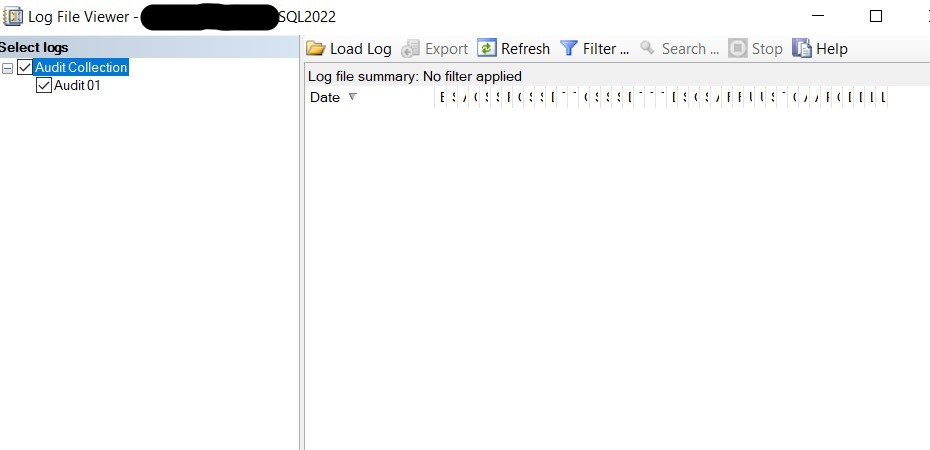
At this point, I should be able to view the audit log via SSMS. However, this gives me no information and I’m assuming that this is an issue with this version of SSMS (version 20.1).
Within SSMS, select ‘Security/Audits’, right-click on the required Audit and select ‘View Audit Logs’. This should show the contents of the audit, but just shows the enormous number of column headers and nothing else.
Figure 7: Viewing the Audit Log Via SSMS
Viewing the audit log via T-SQL proved to be more successful, using sys.fn_get_audit_file and shows the successful and failed logins.
Figure 8: Viewing the Audit File Via T-SQL

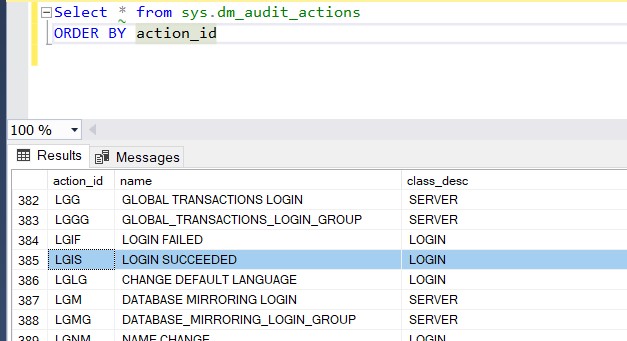
A description of the action_id column values can be found within the table sys.dm_audit_actions.
Figure 9: Action_ID description
Summary
A basic SQL Audit is quite simple to create. In following articles I’ll be covering more detailed audit strategies, as well as the nuances to it for Azure Managed Instances.
 Notes on SQL
One thought on “SQL Audit – Basic Example”