
In a previous article I described the basics of setting up a SQL Server Audit. Having played around with this I have discovered ways to disable the audit without it being obvious. Therefore, I have written a small query that checks for such circumstances.
Interfering With the Audit
Using the same test environment as the previous article, if you disable either of the Audit or Audit Specification (by right-clicking on them and selecting the ‘disable’ option), an entry is written to the audit log, indicating that they have been disabled. Interestingly, I don’t see the appropriate entry when they are enabled.
Figure 1: The Audit Log Showing Disabled Features

So, there is a way to check for deactivated audit via the audit log.
In an interesting twist to this though, I have discovered that it is possible to have an Audit enabled, along with an enabled Audit Specification, but with no entries within the specification. So we can have an audit that appears to be active, but isn’t checking anything.
To demonstrate this, disable the Audit Specification and then right-click on it and select ‘Properties’. When the Audit Specification is disabled, you can highlight each entry and press the ‘delete’ key. The entry is removed.
Figure 2: Removing the Audit Specification Entries
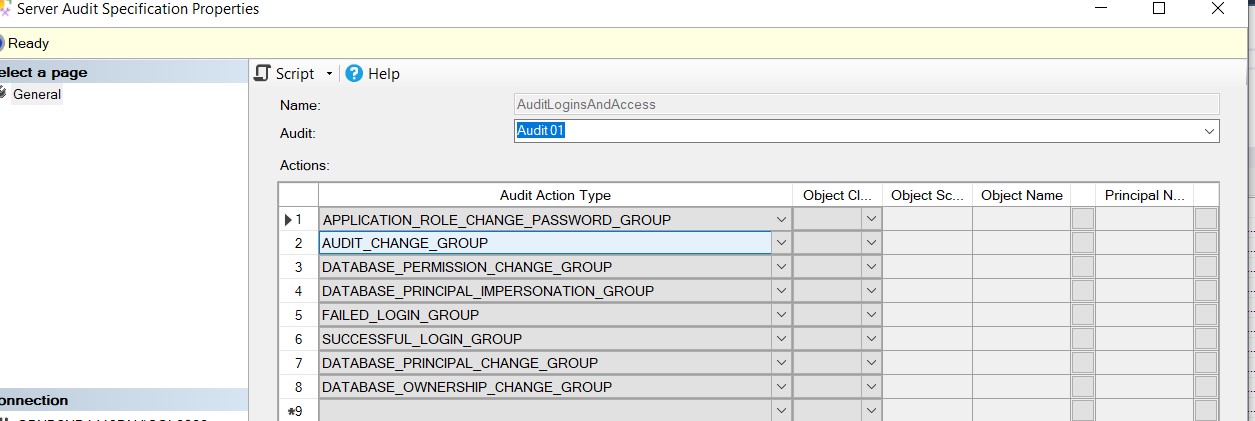
Repeat this for all entries and press ‘OK’ – the Audit Specification has no actions to audit but can be enabled without any errors.
Figure 3: The ‘Empty’ Audit Specification

Now enable the Audit Specification and it will appear to be an active, valid audit. There is nothing that appears in the audit log to indicate there is nothing being audited.
Catching This Issue
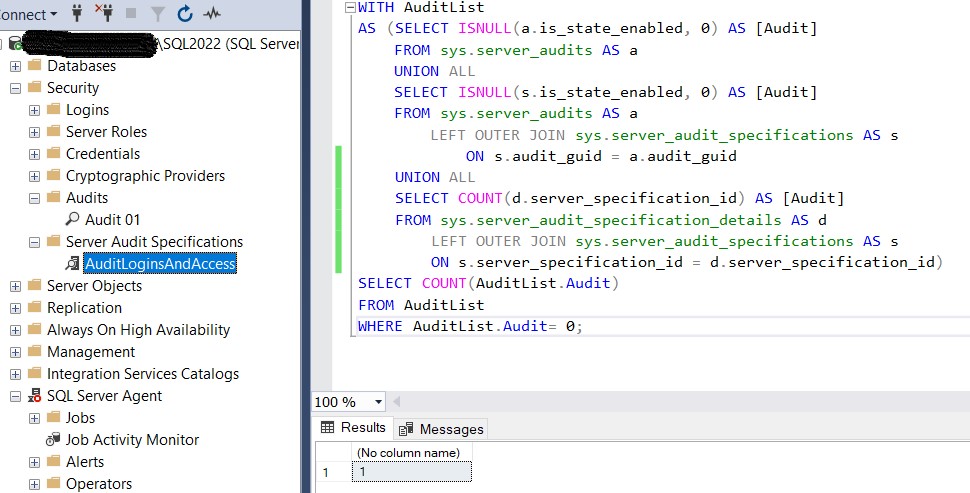
We use Redgate Monitor as one of our monitoring tools, which can have custom alerts. The following code is quite simple. A Common Table Expressions (CTE) checks for the existence of an enabled Audit, an associated enabled Audit Specification and entries associated with the Audit Specification. It returns a count of the checks that fail and if that count is above zero, I use that value to trigger the threshold alert within Monitor
Listing 1: Checking for Valid Audit
WITH AuditList
AS (SELECT ISNULL(a.is_state_enabled, 0) AS [Audit]
    FROM sys.server_audits AS a
    UNION ALL
    SELECT ISNULL(s.is_state_enabled, 0) AS [Audit]
    FROM sys.server_audits AS a
        LEFT OUTER JOIN sys.server_audit_specifications AS s
            ON s.audit_guid = a.audit_guid
	UNION ALL
	SELECT COUNT(d.server_specification_id) AS [Audit]
	FROM sys.server_audit_specification_details AS d
		LEFT OUTER JOIN sys.server_audit_specifications AS s
		ON s.server_specification_id = d.server_specification_id)
SELECT COUNT(AuditList.Audit)
FROM AuditList
WHERE AuditList.Audit= 0;
In this test, there are no entries within the Audit Specification, so a value is returned that will trigger an alert.
Figure 4: Testing the Alert Code
Conclusion
Where audits are concerned, it is important to demonstrate that audits are active, effective and secure. The security side can be interesting, because there are a variety of ways for people with the appropriate permissions to change the audits. The method described in this article still doesn’t make it completely secure. A user with the right permissions and access could disable the custom alert within Redgate Monitor but it is another level of security that can be demonstrated.
 Notes on SQL